If you want to troubleshoot the SMTP connection to your outgoing mail server, you can do that by setting the existing debug option in the PHPMailer library, which executes the mail functions in Joomla. This allows you to log the data, mail commands and the connection status to the PHP error log.
Please note that core modifications are not recommended and the following instructions assume that you revert the file to the original version as soon as possible.
Edit the file libraries/joomla/mail/mail.php and add the following lines to the beginning of the function useSmtp(), after line 467:
// debug SMTPmailer
// $this->SMTPDebug = 3; // output data, commands and connection status
$this->SMTPDebug = 4; // low level data output, all messages
$this->Debugoutput = 'error_log'; // output to error log as configured in php.ini
That is all you need to do in Joomla 3.5.0. There is a small additional modification you need to do for Joomla 3.4.8, documented in this article: Debugging SMTP Mail in Joomla 3.4.8
Once you run the mail function, for example by using Mass Mail to a small group of test users including yourself, you can see detailed messages in the PHP error log, for example this failed connection:
[19-Mar-2016 10:47:39 Europe/London] Connection: opening to smtp.gmail.com:587, timeout=10, options=array ( )
[19-Mar-2016 10:47:49 Europe/London]SMTP ERROR: Failed to connect to server: A connection attempt failed because the connected party did not properly respond after a period of time, or established connection failed because connected host has failed to respond. (10060)
If the SMTP server responds and the connection succeeds, you can see the whole SMTP dialogue in the log file:
[23-Mar-2016 12:47:52 Europe/London] Connection: opening to smtp.gmail.com:587, timeout=300, options=array ( )
[23-Mar-2016 12:47:52 Europe/London] Connection: opened
[23-Mar-2016 12:47:52 Europe/London] SMTP -> get_lines(): $data is ""
[23-Mar-2016 12:47:52 Europe/London] SMTP -> get_lines(): $str is "220 smtp.gmail.com ESMTP t7z282442970wjf.39 - gsmtp
Make sure that you go back to the original version of the file mail.php before the log file starts growing unnecessarily.
- Details
- Written by: Toivo Talikka
- Category: Joomla
- Hits: 19592
If you want to troubleshoot the SMTP connection to your outgoing mail server, you can do that by setting the existing debug option in the PHPMailer library, which executes the mail functions in Joomla. This allows you to log the data, mail commands and the connection status to the PHP error log.
Please note that core modifications are not recommended and the following instructions assume that you revert the file to the original version as soon as possible.
These instruction are for Joomla 3.4.8. If you already run Joomla 3.5.0, follow these instructions instead: Debugging SMTP Mail in Joomla 3.5.0
Edit the file libraries/joomla/mail/mail.php and add the following lines to the beginning of the function useSmtp(), after line 467:
// debug SMTPmailer
// $this->SMTPDebug = 3; // output data, commands and connection status
$this->SMTPDebug = 4; // low level data output, all messages
$this->Debugoutput = 'error_log'; // output to error log as configured in php.ini
In Joomla 3.4.8 you need to modify also the file libraries/vendor/phpmailer/phpmailer/class.smtp.php and replace line 190 with these lines:
// if (is_callable($this->Debugoutput)) {
// Avoid clash with built-in function names
if (!in_array($this->Debugoutput, array('error_log', 'html', 'echo')) and is_callable($this->Debugoutput)) {
Once you run the mail function, for example by using Mass Mail to a small group of test users including yourself, you can see detailed messages in the PHP error log, for example this failed connection:
[19-Mar-2016 10:47:39 Europe/London] Connection: opening to smtp.gmail.com:587, timeout=10, options=array ( )
[19-Mar-2016 10:47:49 Europe/London]SMTP ERROR: Failed to connect to server: A connection attempt failed because the connected party did not properly respond after a period of time, or established connection failed because connected host has failed to respond. (10060)
If the SMTP server responds and the connection succeeds, you can see the whole SMTP dialogue in the log file:
[23-Mar-2016 12:47:52 Europe/London] Connection: opening to smtp.gmail.com:587, timeout=300, options=array ( )
[23-Mar-2016 12:47:52 Europe/London] Connection: opened
[23-Mar-2016 12:47:52 Europe/London] SMTP -> get_lines(): $data is ""
[23-Mar-2016 12:47:52 Europe/London] SMTP -> get_lines(): $str is "220 smtp.gmail.com ESMTP t7z282442970wjf - gsmtp
Make sure that you go back to the original version of the file mail.php before the log file starts growing unnecessarily.
- Details
- Written by: Toivo Talikka
- Category: Joomla
- Hits: 17460
The Joomla 3.x Control Panel shows a list of users who were active at the site, at the front end or the back end.
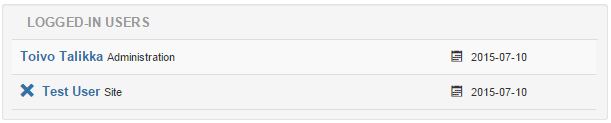
The data is displayed by a module called Logged-in Users. In previous versions of Joomla the time of the last activity was also displayed for each user, which was useful. In version 3.x only the date is included. If you want to add the time back to the listing, it can be done easily in a template override. Here are brief instructions how to do that in Joomla 3.4.3, using the Isis administration template.

If you do not want to hard code the date & time format into the layout, you can define your own format as a language constant in the Language Manager - Overrides.
Subsequent Joomla updates will not overwrite the override code but you need to maintain it, should something change in the core code.
- Details
- Written by: Toivo Talikka
- Category: Joomla
- Hits: 13780
The alpha version of Joomla 3.2.0 is now available. As usual, it is easy to install and it has new features.
There was something I had wanted to test for some time: Gmail as the SMTP server. The Joomla documentation has instructions how to configure the mail settings but when I first tried it, the connection failed. I decided to configure the good old Telnet into my Windows machine so that I could test the SMTP connection manually. The TCP port 465 of the Gmail server responded, therefore the problem was somewhere else.
It occurred to me that I had started to use Google's 2-step authentication because I accessed Gmail from my Nokia Lumia phone. After the 2-step authentication was turned off, the problem disappeared and my WAMP server was able to send emails.
The 2-step authentication is an important security measure. When it was turned back on, I had to add a new password in the Gmail account settings and use that password as the application specific password in Joomla. The interesting thing was to realise that even though Google's instructions mention that the validity of the password does not depend on the blank spaces between the groups of four characters in the password, it actually did. After the spaces were removed, the SMTP connection worked.
The instructions at https://docs.joomla.org have now been updated, based on these test results.
- Details
- Written by: Toivo Talikka
- Category: Joomla
- Hits: 18180