If your Joomla! site has issues in connecting to your SMTP mail server, it is possible to get a detailed log of all the messages exchanged between your Joomla site and the SMTP server. Inspecting this low level transaction log allows you to see what is going wrong between the two servers and then get your IT department or hosting provider to resolve any connectivity issues.
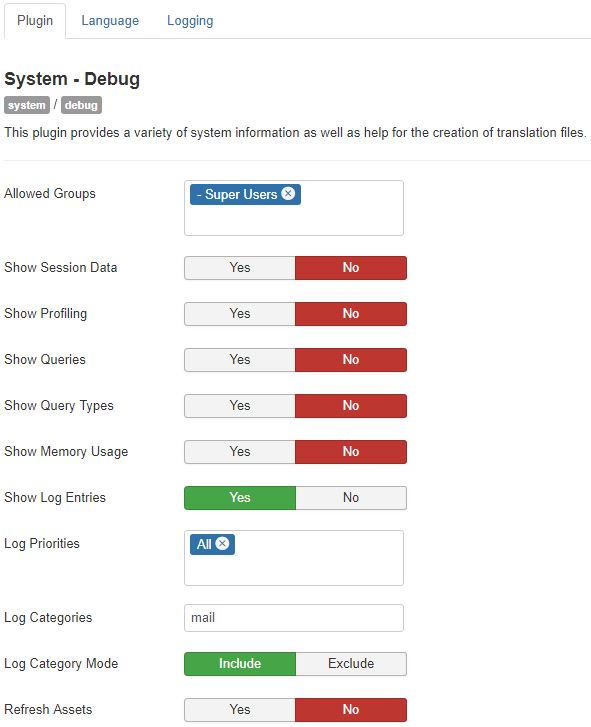
Go to Extensions - Plugins and configure the system plugin 'System - Debug' with the following settings:
- Allowed Groups: Super Users
- Log Priorities: All
- Log Categories: mail
- Log Almost Everything
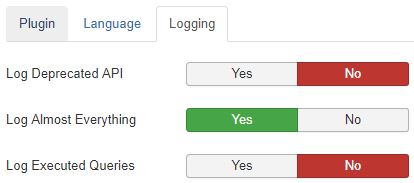
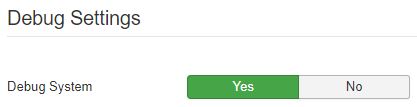
Go to Global Configuration and turn on the debug option in the System tab - Debug Settings - Debug System.
Go to the Server tab - Mail Settings and click the button Send Test Mail.
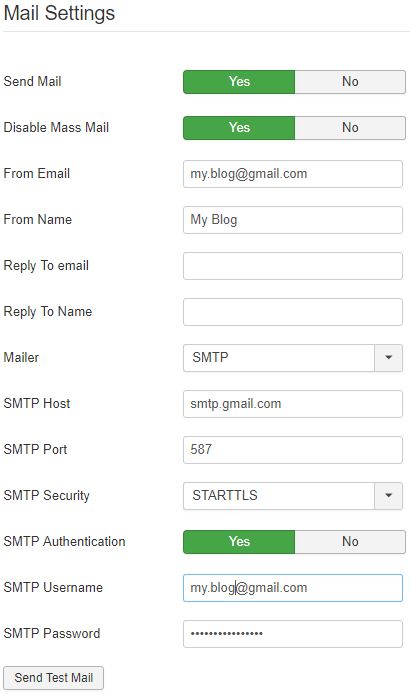
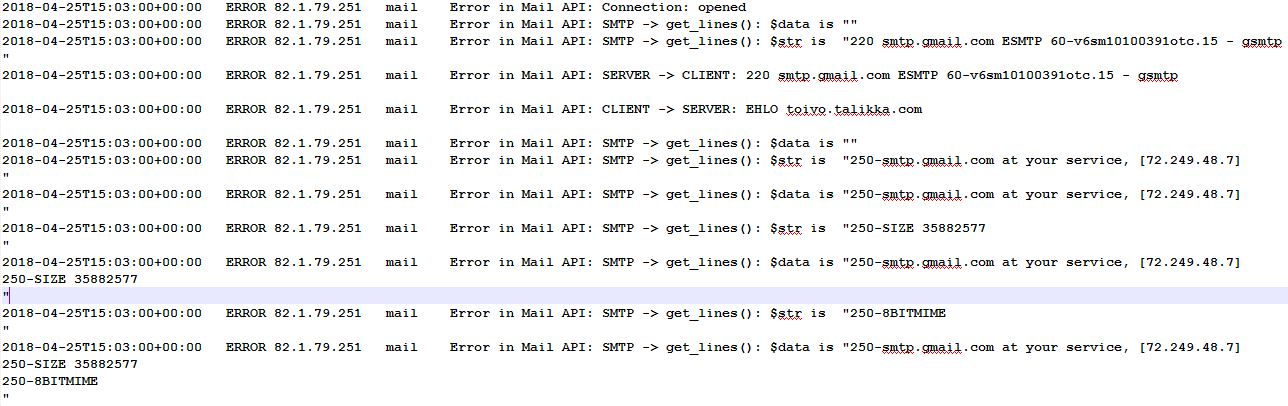
The test result, success or failure, will then get displayed as a system message, but you can download the detailed log file 'everything.php' from the Joomla log folder, usually administrator/logs, or, if your site was installed much earlier, from the /logs folder in the main Joomla folder.
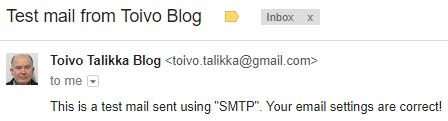
And this is the email we would like to receive from the website:
More about logging from the Joomla! Documentation at https://docs.joomla.org/Using_JLog
- Details
- Written by: Toivo Talikka
- Category: Joomla
- Hits: 12045
If you have issues with SMTP emails, you can get Joomla to record all the detailed messages exchanged with your SMTP server. Inspecting the low level transaction log often allows you to see what is going on between the two servers and resolve any connectivity issues with your IT or hosting provider. This custom method is quite simple to set up if you have FTP or SSH access to the Joomla folder in your web server.
This SMTP debug option involves a temporary modification to a file in the JMail class, an extension of the PHPMailer library. Warning: core modifications are not recommended and you should revert the file back to the original version as soon as possible.
First make a backup copy of the file your are going to modify, libraries/joomla/mail/mail.php. Then edit this file, mail.php, and add the following lines to the beginning of the function useSMTP(), after line 634:
// 20170221 SMTP log
$this->SMTPDebug = 4; // maximum level data output
// $this->Debugoutput = 'error_log'; // use the PHP error log, as configured in php.ini
$this->Debugoutput = function($message, $level) { $file = 'mail_log.txt'; $config = JFactory::getConfig(); $logfile = $config['log_path'] . '/' . $file;
$log = fopen($logfile, 'a'); fwrite ($log, $message); fclose($log);};
// 20170221 end
After you click the button Send Test Mail in the Global Configuration or any other mail function, you can download the file 'mail_log.txt' from the Joomla log folder, usually administrator/logs.
Remember to restore the original version of the file mail.php before the log file grows too much.
And here is the way you can log the mail debug entries by using the standard debug option. Configure the plugin 'System - Debug' with the following key settings:
- Allowed Groups: Super Users
- Log Priorities: All
- Log Categories: mail
- Log Almost Everything
Turn on the debug option in Global Configuration and you can find all the details of the SMTP connection requests and responses with error codes from the file administrator/logs/everything.php.
- Details
- Written by: Toivo Talikka
- Category: Joomla
- Hits: 23514
Make sure you have Google 2-Step Verification turned on: https://www.google.com/landing/2step/
As explained in this article: https://support.google.com/accounts/answer/185833?hl=en, create an application specific password, "App Password", 'my-app-password' below, for your SMTP connection: https://security.google.com/settings/security/apppasswords
Now you can use the following mail settings:
SMTP Host smtp.gmail.com
SMTP Port 587
SMTP Security STARTTLS
SMTP Authentication Yes
SMTP Username
SMTP Password my-app-password
- Details
- Written by: Toivo Talikka
- Category: Joomla
- Hits: 11145
If your site used to send its emails through the Gmail SMTP server and stopped after the latest Joomla update, you can restore the sending by modifying one of Joomla files. Modifying core files is not recommended but sometimes it has to be done as an emergency measure, until a permanent remedy has been implemented in the applications involved.
Versions of Joomla before 3.6.0 used to work with Gmail by using an app password, created from the 2-Step Verification page of Google Accounts at https://security.google.com/settings/security/apppasswords
After the update to version 3.6.0, the connection to smtp.gmail.com reports a failure in the verification of the server certificate:
[28-Jul-2016 09:54:34 UTC] PHP Warning: stream_socket_enable_crypto(): SSL operation failed with code 1. OpenSSL Error messages:
error:14090086:SSL routines:ssl3_get_server_certificate:certificate verify failed in C:\www\joomla360\libraries\vendor\phpmailer\phpmailer\class.smtp.php on line 343
As instructed under "PHP 5.6 certificate verification failure" at https://github.com/PHPMailer/PHPMailer/wiki/Troubleshooting, you can set the Options parameter to bypass the verification of the server certificate.
The following code can be added as a workaround to the beginning of the function useSmtp() in the file libraries/joomla/mail/mail.php:
$this->SMTPOptions = array(
'ssl' => array(
'verify_peer' => false,
'verify_peer_name' => false,
'allow_self_signed' => true
)
);
// 20160729 end
- Details
- Written by: Toivo Talikka
- Category: Joomla
- Hits: 21472